
Our Looker Studio integration enables you to enrich your reports, build dashboards and better analyze data.

Gather and consolidate data from multiple platforms seamlessly into powerful reports, eliminating manual data entry and reducing errors.
Transform complex data sets into clear, actionable information, for faster, better-informed strategic decisions.
Use the information obtained with Smart Copilot to optimize your channel mix, improve your campaigns and achieve your marketing objectives.
Discover how to create a simple and effective Google Analytics report using Looker Studio (formerly Google Data Studio) in conjunction with Smart Copilot.


Why Looker Studio?
Looker Studio, formerly known as Google Data Studio, is a simple yet powerful visualization tool for experts and beginners alike. Using Smart Copilot with Looker Studio solves a number of common problems, such as :Missing data, when some platforms don't have a native connector to Looker Studio.Slow-loading dashboards.Quota limitations, such as those in Google Analytics 4.Looker Studio connects to all the platforms you work with, stores the data, and transmits only the data you need to Looker Studio, delivering a lightning-fast dashboard experience.
Smart Copilot lets you collect data from hundreds of data sources.
CRM & Commerce
Recover your Commerce Cloud sales

Traffic & Analytics
Get your traffic from Google Analytics

Traffic & Analytics
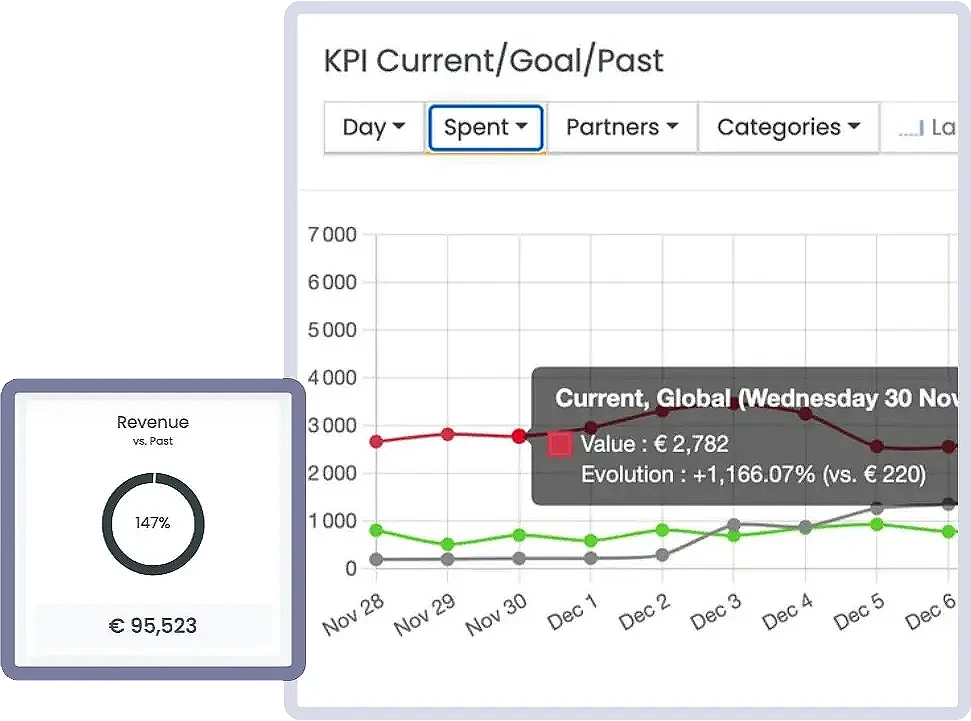
Turn your data into a dashboard

Ads & Marketing
Get your traffic from Google Analytics

CRM & Commerce
Recover your Magento v1 and v2 sales

Traffic & Analytics
Get your traffic from Matomo Analytics

Ads & Marketing
Recover your Google Ads marketing & advertising costs

CRM & Commerce
Get your Shopify sales back

Traffic & Analytics
Get your traffic from Piano Analytics

Ads & Marketing
Recover your Snapchat marketing & advertising costs

CRM & Commerce
Recover your Prestashop sales

Ads & Marketing
Recover your Tiktok marketing & advertising costs

Ads & Marketing
Recover your Criteo marketing & advertising costs

Ads & Marketing
Recover your Pinterest marketing & advertising costs

CRM & Commerce
Recover your Lengow marketing & advertising costs

CRM & Commerce
Recover your Onestock sales

CRM & Commerce
Recover your Neteven sales

Ads & Marketing
Recover your marketing & advertising costs Stylight

Ads & Marketing
Recover your Bing Ads marketing & advertising costs

Ads & Marketing
Recover your Adroll marketing & advertising costs

Affiliation & Marketing
Recover your Awin affiliation costs
1. Log in to Looker Studio with the same credentials you use to connect to Smart Copilot.
2. Go to the Looker Studio data source gallery.
3. Select a Smart Copilot data source.
4. You'll see two buttons marked Authorize. If you're using Smart Copilot for the first time in Looker Studio, click on the one on the left and log in with the Google account you're using with Smart Copilot.
5. Once you have done this, or if you have already done so, click on the Authorize button on the right (under "Data source requires authorization to connect to data").
6. Select a team that has access to the account you wish to connect.
7. Choose whether to make this connection shared or private.
8. Depending on the data source, enter your credentials and click on Start, or click directly on Start, then connect to the data source. See our connection guides for details and authorizations required for each data source.
9. Once you're back in our login flow, click on Finish and continue.
10. Click on Close this window to return to Looker Studio.
11. If you have multiple markets in Smart Copilot, select the team to be used with this connection and click Next.
12. Select the data source parameters - such as the accounts to be used or a report type - you wish to use in your reports. Click Next, if requested.
13. If the data source has a report template available, scroll to the bottom of the page and select Use report template for new reports. To create a blank report, deselect this option. Note that not all data sources have report templates.
14. In the top right-hand corner of the pane, click on Connect.
15. Click on Create report.
16. Click on Add to report or Create report.
Using filter settings for the data source (such as account/page name or time zone, for example) in Looker Studio (formerly Data Studio) can sometimes display images or ad creatives as URLs. Find out more in the "Images and data control" section of this Google article.
By deactivating filter settings, you can display images or ad creatives - rather than URLs - in Looker Studio tables.
Instructions
1 Open your report in Looker Studio.
2.click on the graphic to which you wish to add images.
Select the required image field under Available fields.
If the only available field is "Ad creative image URL", follow these steps to convert URLs to images:
1. In the sidebar, click on the link icon next to the URL field of the ad creative image to open its attributes.
2. Click on the Type drop-down menu.
3. At the bottom of the list, click on URL.
4. Click on Image.
Troubleshooting
- If the URL cannot be converted to an image, check that the URL points to an image and not a web page. URLs that are not links to images cannot be converted to images.
- Bear in mind that image URLs expire due to limitations defined by the data source server. Expired image URLs cannot be converted to images.
If you have specific needs, questions or problems, we're here to help. You can contact us directly via our contact page, where our dedicated team is ready to answer your queries.
Whether you need technical assistance, additional information or a personalized request, we are committed to providing you with a rapid response tailored to your needs. Don't hesitate to contact us - your satisfaction is our priority!